Follow these steps to access documents and provide your feedback using the NextCloud Office suite.
Step 1: Access the Platform
Open the Link: Click the provided URL to navigate to the CISERO NextCloud instance.
Sign In: Log in with your credentials.
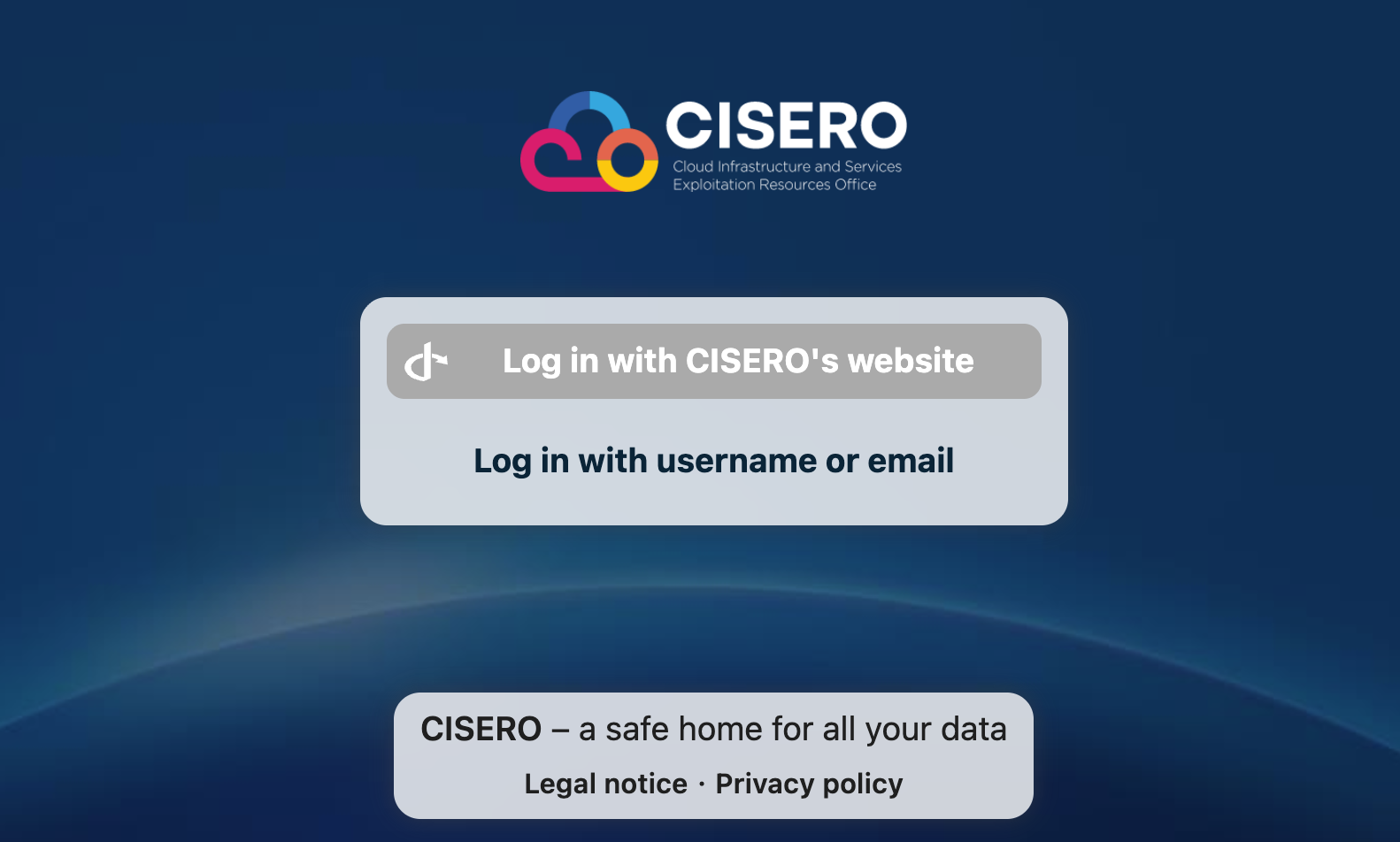
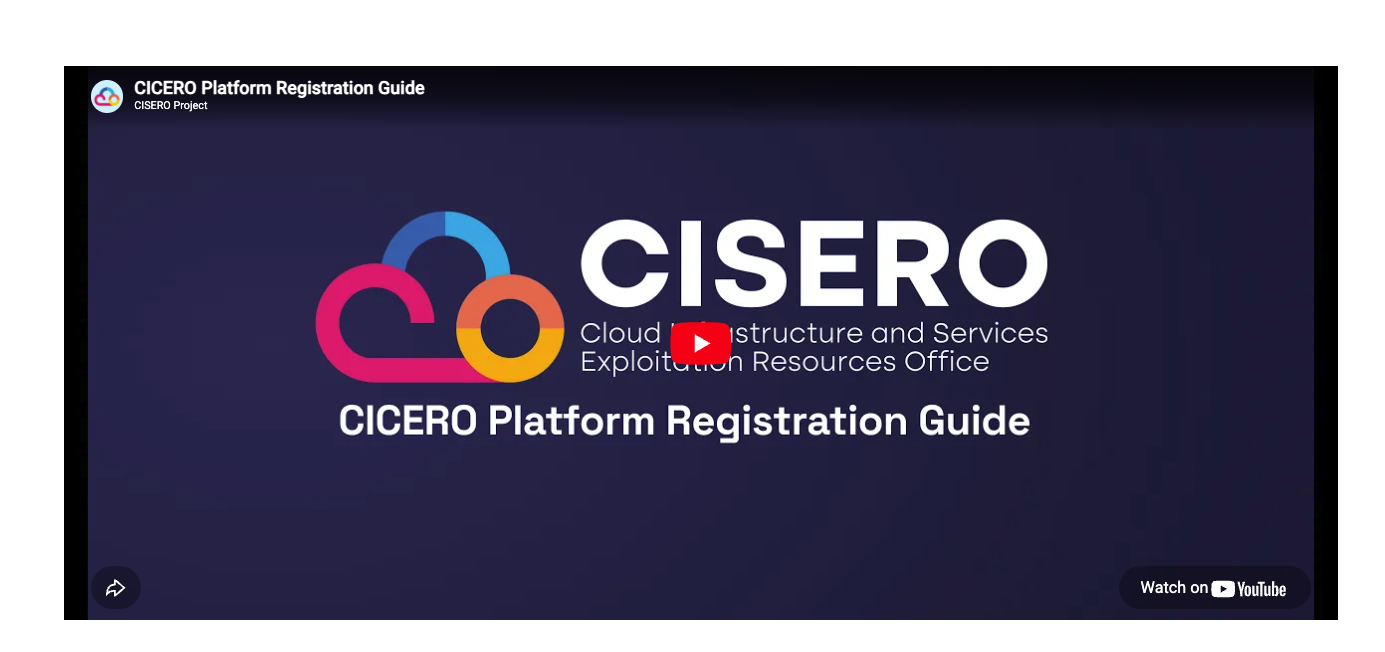
Note: If you do not have an account, please follow the "Sign Up" procedure.
Step 2: Open the Document
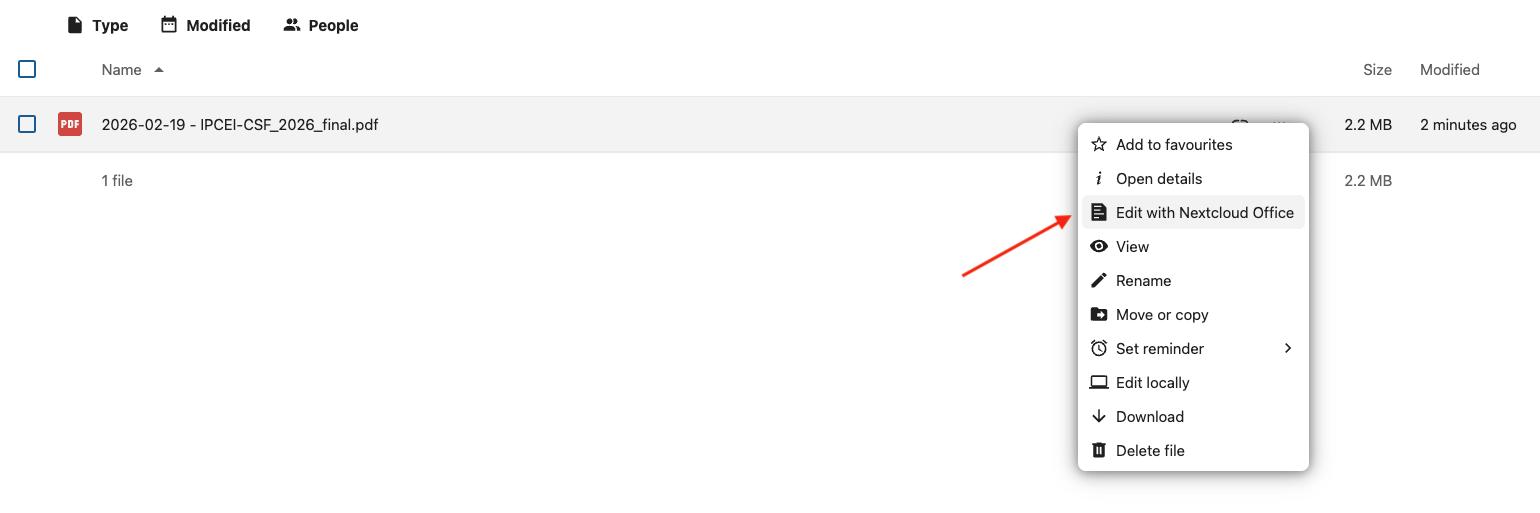
Locate the file you wish to review.
Click the three vertical dots (⋮) (the "More" menu) to the right of the file name.

Select Edit with NextCloud Office from the dropdown menu. This will open the document in your browser's editor.
Step 3: Adding Your Comments
In the top menu bar, select the Insert tab. Click on Comment.
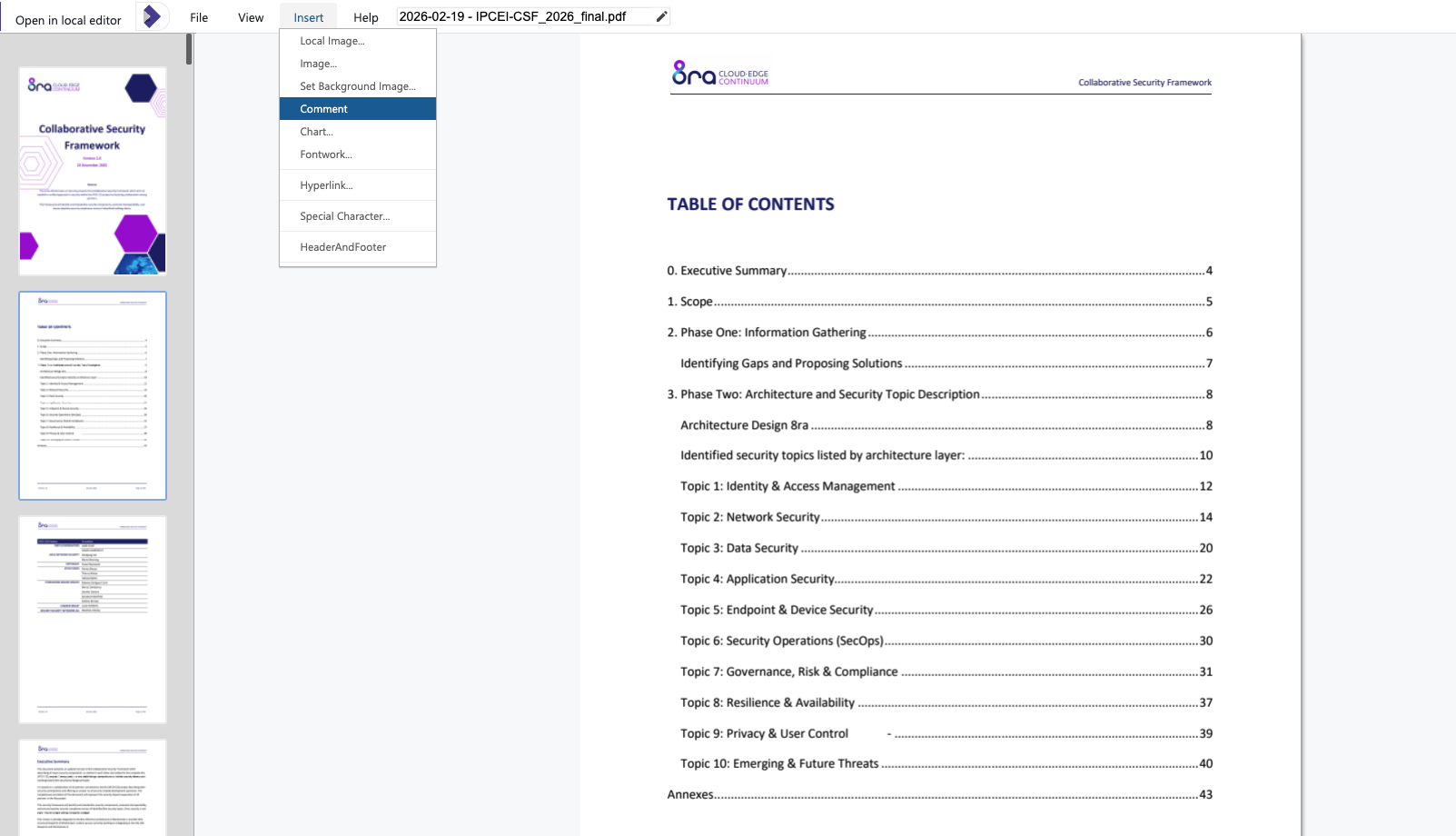
Type your feedback into the box that appears on the right side of the screen.
Step 4: Saving & Managing Feedback
Save: Ensure you saved your comment before closing.
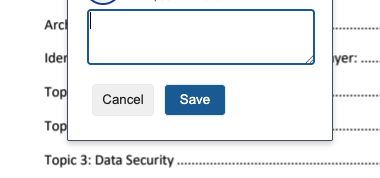
You can click on your existing comments at any time to Edit your text or Delete the comment once the issue is resolved.
Thank you for your valuable feedback and contributions to the project!